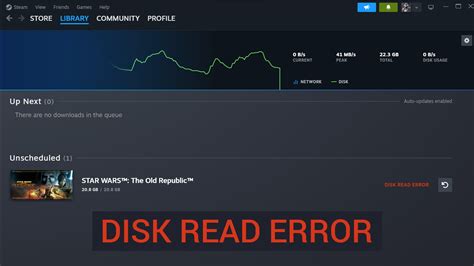
If you’ve ever experienced frustration when trying to play your favorite game on Steam only to be met with a disk write error, you’re not alone. This common issue can stop your gaming session abruptly and leaves many wondering what to do next. This guide will walk you through understanding and resolving disk write errors on Steam in an easy-to-follow, practical manner.
Let’s dive in and arm ourselves with actionable advice to get back to our virtual adventures without hitting any more obstacles.
Understanding Disk Write Errors on Steam
A disk write error in Steam generally indicates that there’s an issue with writing data to the disk, which can happen due to various reasons like corrupted files, hardware problems, or software conflicts. When Steam can’t write to your hard drive properly, you’ll see a disk write error message, often preventing you from accessing or installing games.
Quick Reference
Quick Reference
- Immediate action item: Verify and repair game files to address potential corruption.
- Essential tip: Ensure you have adequate disk space and that your hard drive isn’t failing.
- Common mistake to avoid: Ignoring error messages as they contain crucial information to resolve the problem.
Step-by-Step Guide to Fixing Disk Write Errors on Steam
Addressing a disk write error involves a few troubleshooting steps. Follow these instructions to diagnose and solve the problem effectively.
Step 1: Verify and Repair Steam Game Files
One of the most common fixes for disk write errors is to verify and repair the game files. This process checks for any corrupted or missing files and replaces them.
- Launch the Steam client and go to your Library.
- Right-click on the game showing the disk write error and select Properties.
- Navigate to the Local Files tab.
- Click on Verify Integrity of Game Files.
- Wait for Steam to complete the process. This may take some time depending on the size of the game.
This procedure often resolves the issue by ensuring all game files are intact.
Step 2: Check Disk Space
Insufficient disk space can also cause disk write errors. Make sure your hard drive has enough free space to accommodate the game installation or updates.
- Right-click on the drive where Steam is installed and select Properties.
- Check the available space. If it’s low, consider deleting unnecessary files or moving Steam to a different drive.
- To free up space, you can delete old updates or other large files that are no longer needed.
Step 3: Run Steam as Administrator
Sometimes, permission issues can lead to disk write errors. Running Steam with administrative privileges might help.
- Close Steam completely.
- Right-click on the Steam shortcut and select Run as administrator.
- Try launching Steam and checking if the error persists.
Step 4: Check Disk Health
If the problem continues, it may be time to check the health of your hard drive. A failing hard drive can cause write errors.
- Download a tool like CrystalDiskInfo to check your disk health.
- Open the tool and review the health status of your drives.
- If you find signs of hardware failure, it’s best to back up your data immediately and consider replacing the drive.
Step 5: Update Device Drivers
Outdated or incompatible device drivers can also lead to disk write errors. Ensuring your drivers are up-to-date can resolve these issues.
- Open the Device Manager by right-clicking on the Start button and selecting it from the menu.
- Expand the Disk drives section.
- Right-click on your hard drive and select Update driver.
- Choose Search automatically for updated driver software and follow the prompts.
Step 6: Disable Antivirus Software Temporarily
Sometimes, antivirus software can mistakenly flag Steam’s installation process as a threat, leading to write errors. Temporarily disabling your antivirus can help.
- Open your antivirus software.
- Look for an option to temporarily disable or pause the protection.
- Try to download or install the game again.
- Re-enable your antivirus software once the process is complete.
Practical FAQ
What should I do if none of the above solutions work?
If you’ve tried all the steps above and are still facing disk write errors, it might be time to seek more advanced solutions:
- Consider checking for any Steam service outages or server issues on their official status page.
- Try to contact Steam support for more personalized assistance.
- Backup your important data and perform a clean installation of Steam. Sometimes, a fresh installation can resolve deeper system conflicts.
Lastly, don’t forget to back up your game save files before making significant changes to your system.
By following this guide, you should be well-equipped to tackle disk write errors on Steam and return to your gaming without further interruptions. Remember, patience and careful attention to each step can make a big difference in resolving these frustrating issues.
Stay tuned for more practical guides on troubleshooting and optimizing your gaming experience!