Adding a bot to your Discord server is an essential step if you want to enhance the experience for your members, automate routine tasks, and bring additional features to your community. This guide will walk you through every step of the process in a clear, conversational tone.
Whether you're looking to introduce a chatbot for customer support, a game-playing bot for fun, or a moderation bot to help keep things organized, this guide will ensure you get it right the first time. Let’s dive in!
Why Add A Bot To Your Discord Server?
Discord bots can serve numerous functions depending on what you want to achieve in your server. Some popular reasons for adding a bot include:
- Automate moderation tasks such as kicking or banning users, sending warnings, and logging activities.
- Enhance the server with fun features like games, memes, jokes, and trivia.
- Provide essential services such as music streaming, news updates, weather reports, and more.
- Create interactive experiences by adding RPGs, quizzes, or custom command functionalities.
Adding bots can drastically increase engagement and make managing your server easier. Now, let’s explore how to add a bot effectively!
Quick Reference
Quick Reference
- Immediate action item: Choose the bot you want to add. Check the bot’s official website or Discord listing for reviews and features.
- Essential tip: Enable two-factor authentication (2FA) for your Discord account before adding any bot, to secure your account.
- Common mistake to avoid: Ignore bot permissions. Always make sure the bot has the required permissions to perform tasks in your server.
Step-by-Step Guide To Adding A Bot To Your Discord Server
This detailed guide will walk you through the process from start to finish. We’ll cover finding a bot, inviting it to your server, setting it up, and ensuring it works as expected.
Step 1: Choosing The Right Bot
Before you begin, determine the purpose of the bot you want to add. Here’s how:
- Research: Use websites like Top.gg, DiscordBotList, or BotList to find bots that match your needs.
- Reviews: Check user reviews to see how other server owners are finding the bot.
- Features: Ensure the bot includes features you’re interested in, such as moderation, games, music, etc.
Once you’ve chosen a bot, navigate to its official website or Discord listing.
Step 2: Inviting The Bot To Your Server
Now, let’s invite the bot to your server:
- Server Authorization: On the bot’s listing page, you’ll see an “Add to Server” or “Invite” button. Click on it.
- Authorize: You’ll be redirected to a screen asking for server authorization. Select the server you want to add the bot to and click “Authorize.”
- Permissions: You’ll be prompted to grant the bot specific permissions. Review the permissions carefully to ensure they meet your requirements. Typical permissions include “Send messages,” “Read messages,” and “Manage messages.”
- Confirmation: After granting the necessary permissions, click “Authorize” to finish inviting the bot to your server.
The bot will now be added to your server. Before you start using it, there are some additional setup steps you might need to take.
Step 3: Bot Configuration
Once the bot is added, you might need to configure it to fit your server’s needs:
- Bot Commands: Access the bot’s command list either through its settings on the listing page or directly within your server using its commands. For instance, if you added a moderation bot, you’ll likely have a command to configure moderation levels.
- Customize: Adjust settings to customize the bot’s behavior, such as adjusting prefix commands, setting up game channels, etc.
- Test: Ensure the bot is working as expected by running a few test commands.
Most bots come with extensive documentation available on their listing page or official website, which can guide you through specific configurations.
Step 4: Testing And Troubleshooting
After setting up, it’s crucial to test the bot to make sure everything is functioning correctly:
- Run Test Commands: Execute various commands provided by the bot to ensure it responds correctly.
- Check Logs: Some bots come with logging capabilities. Check the logs to troubleshoot any issues that might arise.
- Seek Help: If the bot isn’t working as expected, don’t hesitate to seek help from the bot’s support channels or community forums.
Most bots provide a support email or a ticketing system if you’re experiencing issues that you can’t resolve on your own.
Practical FAQ
How do I remove a bot from my server?
Removing a bot is straightforward if you no longer need it:
- Go to the server settings where the bot is listed.
- Click on the bot’s name.
- Scroll down to the bottom of the page and click on “Remove Bot.” Confirm the action.
Your server will no longer have the bot active, and it will no longer perform any actions unless re-added.
What if the bot stops responding?
If a bot stops responding, follow these steps:
- Check the bot’s status on its listing page or official site.
- Look for any maintenance notifications or updates.
- Visit the bot’s support or community page to see if others are experiencing similar issues.
- If no issues are reported, try re-adding the bot.
If the issue persists, contact the bot’s support for further assistance.
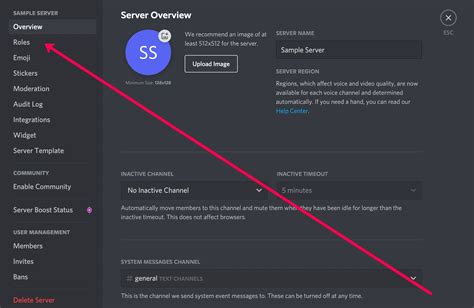
How do I manage bot permissions?
To manage bot permissions effectively:
- Go to the server settings.
- Click on the “Roles” tab.
- Select the @everyone role or specific roles that should manage the bot.
- Assign the permissions the bot needs by clicking on the bot’s name and granting/revokng permissions.
Always ensure the bot has the minimal permissions required to function properly to prevent security risks.
In conclusion, adding a bot to your Discord server can greatly enhance the functionality and enjoyment of your community. By following the steps outlined in this guide, you can ensure a smooth addition, effective setup, and continuous maintenance of the bot to meet your server’s unique needs. Happy botting!