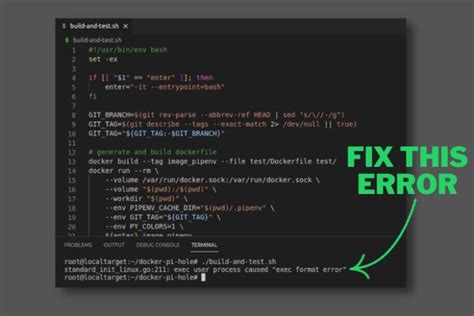
If you’ve encountered an “Exec Format Error” while working on your system, you’re likely dealing with a common issue that arises when a system attempts to execute a file in an unsupported format. This guide will walk you through the process of understanding and resolving this issue with step-by-step guidance, practical examples, and problem-solving solutions.
Understanding the Exec Format Error
An "Exec Format Error" typically occurs when you're trying to execute an executable file that's either not designed to run on your current system architecture, corrupted, or improperly formatted. Such an error can be perplexing, especially if you're not familiar with the underlying technical details. This guide aims to demystify the error and provide actionable steps to resolve it.Why It Matters
Encountering an "Exec Format Error" can disrupt your workflow, whether you're trying to run a software application, script, or any executable file. This error is crucial to address because it prevents the file from running, thus hindering your productivity. Understanding how to troubleshoot and fix this error will save you time and prevent frustration.Quick Reference
Quick Reference
- Immediate action item: Check the architecture compatibility of the executable file with file -v.
- Essential tip: Use chmod +x to ensure the file has executable permissions.
- Common mistake to avoid: Overlooking the file's integrity by not verifying its download or transfer process.
Step-by-Step Troubleshooting Guide
Step 1: Verify File Compatibility
The first thing you should do is confirm that the executable file is compatible with your system’s architecture. Most Unix-like systems provide the file command to determine a file’s format.To check the file, open a terminal and use the command:
file -v
This will display the format and architecture of the file. For instance:
executable: ELF 32-bit LSB executable, ARM architecture, version 1, statically linked, not stripped
If the architecture doesn't match your system (e.g., you have a 64-bit x86 architecture but the file is 32-bit ARM), you will encounter an "Exec Format Error". In such cases, you may need to obtain a version compatible with your architecture.
Step 2: Check Executable Permissions
Even if the file is architecturally compatible, it might not execute due to insufficient permissions. You can adjust file permissions using the chmod command. Make sure the file is executable:
chmod +x
To apply these changes, you might need superuser privileges. Use sudo if necessary:
sudo chmod +x
Step 3: Inspect the File for Corruption
Corrupted files can also lead to an “Exec Format Error”. To ensure the file isn’t corrupted, you can:
- Re-download the file from a trusted source.
- Verify the file using a checksum (e.g., SHA256) if a checksum is available.
Using checksums, you can compare the file's hash with the one provided by the source. Here's how you can do it:
sha256sum
Compare the output with the expected hash. If they match, the file is not corrupted.
Detailed Solutions
In-Depth Compatibility Check
If the file is compatible but still encounters issues, you may need to delve deeper:
- Use file -v with verbose output for detailed information.
- If you're on a multi-architecture system (e.g., a Mac with Rosetta), ensure the necessary translations are available.
Addressing Missing Dependencies
Sometimes, the executable might rely on specific libraries or dependencies that aren’t installed on your system. Here’s how to handle it:
- Identify required dependencies using ldd
. - Install missing libraries via your package manager. On Debian-based systems, use apt-get install
.
Handling Cross-Platform Files
When dealing with cross-platform executables (e.g., a file for both Windows and Linux), make sure you’re using the correct version:
Check file format and architecture as described in the previous steps.
In some cases, you might need to use cross-platform tools or virtual machines to run the file.
Practical FAQ
What should I do if I receive an “Exec Format Error” on a script file?
If you’re encountering an “Exec Format Error” with a script file (such as a Bash or Python script), the issue might lie with shebang line or permissions. Here’s how to fix:
  <ol>
    <li>Verify the shebang line. It should indicate the correct interpreter for your script. For a Bash script, it should start with <em>#!/bin/bash</em>.</li>
    <li>Ensure the script file has execute permissions by running <strong>chmod +x <path_to_your_script></strong>.</li>
    <li>If it’s a Python script, confirm the correct Python version is installed and accessible. You can specify the interpreter in the shebang line if necessary.</li>
  </ol>
</div>
I get an "Exec Format Error" when trying to run a compiled program on my system. What could be wrong?
A common cause could be running a compiled program designed for a different architecture. Follow these steps:
- Use file -v
to check the architecture compatibility. - Ensure you have all necessary libraries installed.
- If the program was built on a different system, consider using a cross-compilation tool or running it in a virtual machine.
Final Tips and Best Practices
To avoid encountering “Exec Format Errors” in the future, consider these best practices:
- Always download executable files from trusted sources.
- Verify file integrity using checksums when available.
- Regularly check for software updates to ensure compatibility.
- Document your setup and configurations to make troubleshooting easier.
Following this guide will help you efficiently address and resolve “Exec Format Errors” while enhancing your understanding of file compatibility and system architecture. Happy troubleshooting!