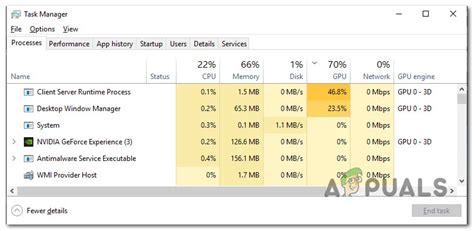
When you notice that the Desktop Window Manager (DWM) is using a high percentage of your GPU, it can significantly impact your system’s performance, leading to lag, freezing, or unresponsiveness, especially during graphic-intensive tasks such as gaming, video editing, or streaming. This guide will walk you through a step-by-step process to identify and resolve these performance issues, ensuring your system runs smoother and more efficiently.
Understanding the Desktop Window Manager (DWM) High GPU Issue
The Desktop Window Manager (DWM) is a component in Windows that manages the graphical interface, allowing for the composition, effects, and rendering of windows. If DWM is consuming an unusually high amount of GPU resources, it might be due to various reasons such as driver issues, conflicts with certain applications, or visual effects settings that are too high. Understanding these factors is crucial for resolving the problem.
Quick Reference
Quick Reference
- Immediate action item with clear benefit: Disable unnecessary visual effects. Right-click on 'This PC' > 'Properties' > 'Advanced system settings' > 'Settings' under Performance. Select 'Adjust for best performance' or customize settings by unchecking specific effects.
- Essential tip with step-by-step guidance: Update or roll back your GPU drivers. Navigate to Device Manager > Display adapters > Right-click on your GPU > Update driver. Alternatively, select 'Properties' > 'Driver' tab > 'Roll Back Driver' if the issue started recently.
- Common mistake to avoid with solution: Leaving unnecessary graphics-intensive applications running. Close any non-essential applications before testing performance changes to ensure accurate results.
Step-by-Step Guide to Optimize DWM GPU Performance
Check and Adjust Visual Effects
Visual effects consume significant GPU resources. Adjusting these settings can drastically improve performance.
- Access System Properties: Right-click on ‘This PC’ > ‘Properties’ > ‘Advanced system settings’.
- Performance Settings: Under the ‘Advanced’ tab, click ‘Settings’ in the Performance section.
- Choose Performance Option: You can select ‘Adjust for best performance’ for the most GPU-saving option. Alternatively, customize by unchecking options like ‘Fade or slide window when minimizing and maximizing’, ‘Animate controls and elements inside windows’, etc.
- Apply and Restart: Click ‘Apply’ > ‘OK’. Restart your computer to ensure changes take effect.
Update or Roll Back GPU Drivers
Outdated or incorrect GPU drivers can cause DWM to utilize high GPU resources. Ensuring your drivers are up to date is crucial.
- Device Manager Access: Right-click ‘Start’ > ‘Device Manager’.
- Navigate to Display Adapters: Expand the ‘Display adapters’ section to see your GPU.
- Update Driver: Right-click on your GPU > ‘Update driver’ > ‘Search automatically for updated driver software’.
- Roll Back Driver: If the issue started recently, right-click on your GPU > ‘Properties’ > ‘Driver’ tab > ‘Roll Back Driver’ if the option is available.
- Restart: After updating or rolling back, restart your computer to apply changes.
Adjust Power Settings for Your GPU
Power settings can also affect how your GPU performs. Optimizing these settings can help manage the load on your GPU.
- Access Power Options: Right-click on the battery icon in the taskbar > ‘Power options’.
- Select Power Plan: Choose ‘Balanced’ or ‘High performance’. If you experience high GPU usage even with high performance selected, consider creating a custom power plan.
- Create a Custom Plan: Under ‘Select a power plan’, click ‘Create a power plan’. Choose ‘High performance’ as a starting point, then adjust settings such as processor state, minimum and maximum processor state, and hard disk sleep settings to maximize performance.
- Save and Apply: Name your plan and click ‘Save’. Activate it to see improved performance.
Manage Startup Applications
Startup applications can also strain your GPU. Managing these programs can help reduce the load.
- Task Manager Access: Right-click taskbar > ‘Task Manager’.
- Navigate to Startup Tab: Click on the ‘Startup’ tab.
- Disable Unnecessary Programs: Right-click on programs that aren’t critical to your startup routine and select ‘Disable’.
- Reassess Performance: Restart your computer and monitor GPU usage to see if there’s an improvement.
Practical FAQ
How can I monitor my GPU usage more effectively?
To monitor your GPU usage effectively, consider using built-in tools like Windows Performance Monitor or third-party applications such as MSI Afterburner or GPU-Z. These tools provide real-time data on GPU performance, allowing you to pinpoint when DWM usage spikes and under what circumstances. Additionally, enabling ‘Show core temperatures and fan speed in the taskbar’ in Windows Settings can offer a quick glance at how your GPU is performing.
Final Tips and Best Practices
To maintain optimal performance and avoid high GPU usage by DWM, consider these best practices:
- Regularly Update Drivers: Keep your GPU drivers updated to benefit from the latest performance improvements and bug fixes.
- Optimize Power Settings: Use the ‘High performance’ power plan, but adjust if you experience any issues.
- Manage Visual Effects: Regularly review and adjust visual effects settings based on your hardware capabilities.
- Limit Startup Programs: Regularly check and disable unnecessary startup programs.
- Monitor System Health: Use monitoring tools to keep an eye on system health and performance, allowing you to catch potential issues early.
This guide provides comprehensive, step-by-step advice to address high GPU usage by DWM, offering practical solutions to improve your system’s performance. Implementing these strategies will help ensure a smoother, more responsive computing experience.